Monday, February 3, 2014

How to Retrieve Files from Virus-Infected Memory Card

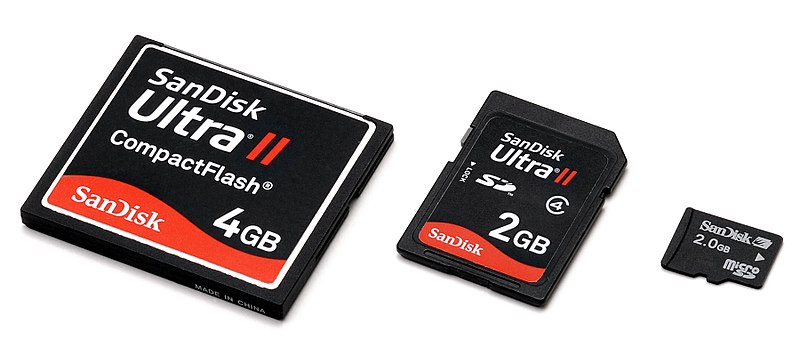
Recently, I had to use my camera's memory card and card reader in place of a USB to have a file printed in some tarpaulin printing shop. And... it got infected. As soon as I inserted it into my lappie's USB slot, my Avast antivirus software was quick to detect the infection. After I got it fixed, my files were gone - files which were very important (photos of a recent event).

If you are experiencing the same incident as I have, don't panic. You can retrieve your files.

How to Retrieve Files from Virus-Infected Memory CardFirst off, you have to know that your files are still stored in your memory card. To check, Goto Computer window and in the Devices with Removable Storage you will see your memory card property confirming this (__GB free of ___ GB, which indicates usage). So do not Format immediately.

What to do:

  1. Windows Start >> Type in Run 
  2. Open cmd.exe by typing in cmd 
  3. Type N: (replace N with the letter of your Drive), press enter
  4. Then attrib -s -h /s /d *.* and press enter
  5. Goto your memory card folder and you'll see your lost files.
Most of the time, what happens when a device is infected is that files and folders are hidden. And these steps will help you get them back.

:)

Monday, June 25, 2012

How to Clean Silver Jewelry Tarnished by Sulfur

Just this weekend, I visited a resort in Kidapawan that features hot and cold spring pools. After a while of dipping into the pools of Lake Agco and enjoying the relaxing steam that naturally bubbles from deep within the earth, I noticed the blackening of my silver rings. When exposed to sulfur-containing water or air, silver undergoes a chemical reaction that results to tarnish. As you can see in the photo, the once shiny silver rings have been discolored.


Even with just everyday use, discoloration is a common problem with silver jewelry. If you are faced with this same issue, here's what you have to do to bring your accessories back to their old glorious shine:


  1. Prepare aluminum foil and shape it into a cup with a diameter just enough to hold your jewelry.  

  2. Create a solution of dishwasher, water, and baking soda with 1:1:1 ratio. In my case, I had 1 tsp of each mixed and poured into the aluminum cup.
  3. Heat a pan/wok with a little water. Place the aluminum cup with solution and jewelry in the middle. While the solution is at boil, notice the drastic change in the silver rings. (See photo).
  4. After the color has already lightened you can use a small brush to further clean the intricate designs of the jewelry where dirt may still be stuck.
  5. Wipe the accessories dry and your jewelry is will look as good as new.
 
~ -__- ~


Lake Agco, Kidapawan, North Cotabato

Thursday, May 19, 2011

NOKIA Series Codes

Here are useful codes that Nokia mobile users can use to get specific information, and activate or deactivate certain functions:

12345 This is the default security code
*#4720# Activate Half Rate Codec - Your phone uses a lower quality sound but you should gain approx 30% more Talk Time
*3370# This Nokia code activates Enhanced Full Rate Codec (EFR) - Your Nokia cell phone uses the best sound quality but talk time is reduced my approx. 5%
#3370# Deactivate Enhanced Full Rate Codec (EFR)
*#4720# With this Nokia code you can deactivate the Half Rate Codec
*#67705646# Phone code that removes operator logo on 3310 & 3330
*#73# Reset phone timers and game scores
*#7760# Manufactures code
*#7780# Restore factory settings
**21*number# Turns on “All Calls” diverting to the phone number entered
**67*number# Turns on “On Busy” diverting to the phone number entered
**61*number# Turns on “No Reply” diverting to the phone number entered
*#06# For checking the International Mobile Equipment Identity (IMEI Number)
*#0000# Displays your phones software version, 1st Line : Software Version, 2nd Line : Software Release Date, 3rd Line : Compression Type
*#9999# Phones software version if *#0000# does not work
*#21# This phone code allows you to check the number that “All Calls” are diverted to
#pw+1234567890+1# Provider Lock Status (use the “*” button to obtain the “p,w” and “+” symbols)
#pw+1234567890+2# Network Lock Status (use the “*” button to obtain the “p,w” and “+” symbols)
#pw+1234567890+3# Country Lock Status (use the “*” button to obtain the “p,w” and “+” symbols)
#pw+1234567890+4# SIM Card Lock Status (use the “*” button to obtain the “p,w” and “+” symbols)
*#2640# Displays phone security code in use
*#30# Lets you see the private number

*#61# Allows you to check the number that “On No Reply” calls are diverted to
*#62# Allows you to check the number that “Divert If Unreachable (no service)” calls are diverted to
*#67# Allows you to check the number that “On Busy Calls” are diverted to
*#43# Allows you to check the “Call Waiting” status of your cell phone.
*#92702689# Displays - 1.Serial Number, 2.Date Made, 3.Purchase Date, 4.Date of last repair (0000 for no repairs), 5.Transfer User Data. To exit this mode you need to switch your phone off then on again
*#746025625# Displays the SIM Clock status, if your phone supports this power saving feature “SIM Clock Stop Allowed”, it means you will get the best standby time possible
*#8110# Software version for the nokia 8110
*#94870345123456789# Deactivate the PWM-Mem
press and hold # Lets you switch between lines


Nokia Series Codes

Tuesday, January 18, 2011

How to Inquire on Your SmartBro Balance

I have been using my SmartBro Plug It modem for a couple of years now but still do not know how to go about getting the balance. I have tried time and again to search for the answer but never got to it... well not until now.

I have finally found the answer and am sharing it here. To get your SmartBro Balance, there are two ways that you can go about it.


  1. You can go to Smart Web Connect at http://smart.com.ph/connect/ . Register. And when done, log-in with your SmartBro number minus the zero. Go to Browse Web Connect Services and click on  Balance Inquiry. You will then get your SmartBro balance.
  2. Another, easier way to do this is through TEXTING. Using your SmartBro Sim, text BRO BAL to 2200 and you will receive a text message on your remaining SmartBro Balance.
It's this easy... :)


Thursday, December 16, 2010

Manually Deleting Temporary Internet Files

Aside from being unnecessary and using up needed space in your disks, Temporary Internet Files can also cause problems to your computer. In my case, my PC has been hanging again and again requiring that I restart each time this happens. And when you are working on something, this can truly be a hassle.

There are several ways to go about deleting your temporary files. You can do this easily through your browsers or going to Windows Temp folder and deleting Temp files from there. But with both options, there will still be a lot of Temporary Internet Files left in your disks. Here are several, more thorough methods to go about deleting Temporary Internet Files:

1. Windows XP Utility

(1) Start > (2) All Programs > (3) Accessories > (4) System Tools > (5) Disk Cleanup

2. File Search and Manual Delete

a. In Windows XP, go to (1) Start > (2) Search
b. In the search box, copy paste this exactly *.tmp,*.chk,~*.*
c. Take note to select “All Local Drives”, especially if you have multiple partitions. And check "Search hidden files and folders" and "Search system folders".
d. When the search is completed, delete all. Take note that there are files that you will not be able to delete as these are used to run Windows XP. If you want to delete all, go into safe mode and do the Windows XP Utility instructions above.

Tuesday, December 14, 2010

5

4

Search This Blog